Enhance Your iPhone Experience with iOS 26 Updates
Discover how to tailor Google and enhance your search results by following these simple guidelines. It includes adding DailyHackly as a preferred tech news site.
iOS 26 Features Worth Noting
After a few days with the release of iOS 26, some small yet useful updates have been introduced to enhance phone usability. While some changes may not appeal to everyone, noteworthy adjustments—such as disabling the new Liquid Glass effects or correcting tilted icons in Dark Mode—are worth exploring.
After fine-tuning the settings to fit personal needs, here are some highlights from Apple’s latest operating system.
Enlarge the Lock Screen Clock
This feature significantly benefits users with devices featuring an always-on display. As a millennial who often relies on my phone for quick time checks, the previous tiny clock was less than ideal.
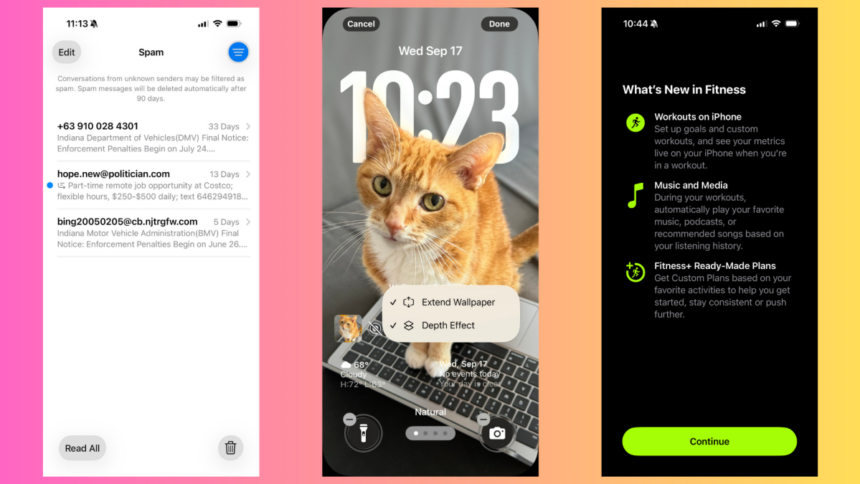
With iOS 26, resizing the lock screen clock is now possible, making it more prominent and easier to see. To accomplish this, simply long-press the lock screen, select the customization option, and drag the clock widget’s corner to your preferred size.
Bear in mind that resizing is only available with the first font option. If there’s no selection frame visible, tap the font to change it before resizing.
Smart Call Screening
Phone calls are rarely answered these days. The outlook is often “if it’s urgent, they’ll call back.” Yet, to avoid missing important conversations, the new Call Screening feature in iOS 26 proves invaluable.
To activate it, navigate to Settings > Apps > Phone > Screen Unknown Callers > Ask Reason for Calling. This feature allows iPhones to answer unknown numbers and request the caller’s purpose. Real-time transcription will display on the screen, allowing the user to decide whether to continue the call. Users have reported a decline in spam calls since enabling this feature.
For those wanting stricter measures, an option to mute unknown callers directly sends them to voicemail.
Note, however, that Call Screening does not apply to saved contacts, so familiar names will still require personal judgment.
Revamped Fitness Application
Previously, the Fitness app was mainly useful for viewing summaries and Apple Fitness+ content but lacked a robust tracking system. Now, that has changed.
Upon updating to iOS 26, a new Workout tab appears within the Fitness app, allowing quick access to a variety of outdoor workouts such as walking, running, cycling, and hiking. The phone’s GPS can estimate metrics even without a health tracker.
Moreover, pairing the phone with a heart rate monitor unlocks other workout options, including Indoor Run, Yoga, and High Intensity Interval Training, as long as the user wears the device during exercise.
Tracking is interactive; metrics are visible live on the phone screen, eliminating the hassle of squinting at a smartwatch. This feature also extends to workouts initiated from the Apple Watch, syncing seamlessly with the Fitness app and displaying stats on the lock screen.
Hold Assist: A New Level of Convenience
With an upcoming trip, a quick phone call to the pharmacy for prescription refills is necessary. However, getting put on hold by customer service can be frustrating. The new Hold Assist feature makes this experience much smoother.
This feature detects when a call is placed on hold and offers to maintain the connection for the user. By selecting “Hold This Call?” the call minimizes to a small icon near the screen’s top, muting audio while users can rest or use their device freely. Notifications will alert users when the call resumes with a transcription of what occurred while on hold.
Hold Assist is usually enabled by default after installation of iOS 26, but it can be verified under Settings > Apps > Phone > Hold Assist Detection.
Built-In Spam Folder for Messages
A new feature automatically sorts spam messages within the Messages app. Given the increase in scam texts, the added Spam folder has effectively filtered out unwanted communications.
It functions similarly to the spam folders seen in other applications, such as Gmail. Users can easily access the Spam folder by clicking the three-lines icon in the top corner of the Messages app, providing a cleaner interface and relieving clutter from the main inbox.
Be cautious when reviewing these messages, as they may contain links that could pose risks. If a spam message is overlooked, it will be kept for 90 days before automatic deletion, with the option to click Recover to restore any mistakenly marked message.
Spam filtering is automatically set up, but it can be confirmed via Settings > Apps > Messages > Unknown Senders, ensuring the Filter Spam toggle is activated.