Streamlining Your Email Subscriptions with Gmail’s New Tool
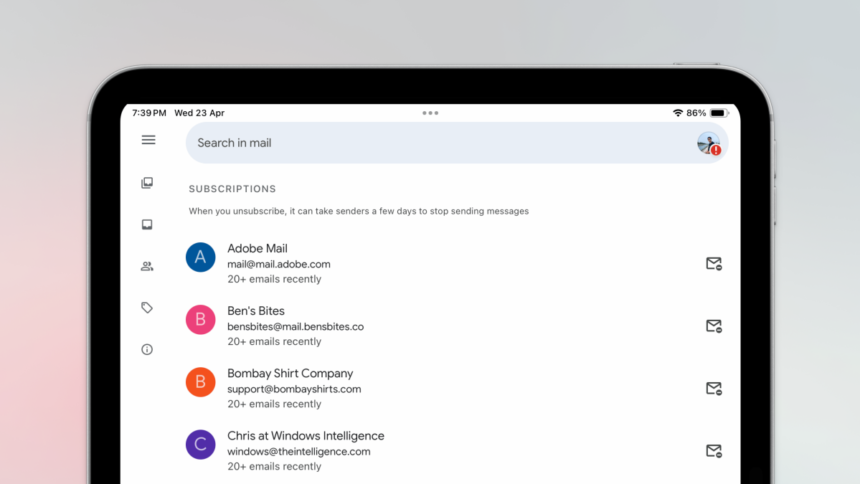
Gmail has simplified managing promotional emails by introducing an Unsubscribe button in every newsletter you receive. This enables users to remove themselves from mailing lists without the need to visit external websites. Now, the platform has enhanced this functionality by offering a centralized management system for all subscriptions, allowing you to unsubscribe from multiple emails with ease, similar to the Subscriptions feature on YouTube.
Manage Subscriptions Feature Now Available
The new Manage Subscriptions tool presents a significant benefit for users. Instead of scrolling through your entire inbox to locate newsletters, Gmail actively highlights these emails for you. This enhancement displays both the sender’s names and email addresses, making it easier to identify promotional correspondence.
This feature is gradually being introduced on Android, iOS, and web platforms. According to Google, it could take some time for it to become available across all devices. Users might find it accessible on one device while it remains unavailable on another, even if they are logged into the same account.
Effortlessly Unsubscribe from Email Newsletters
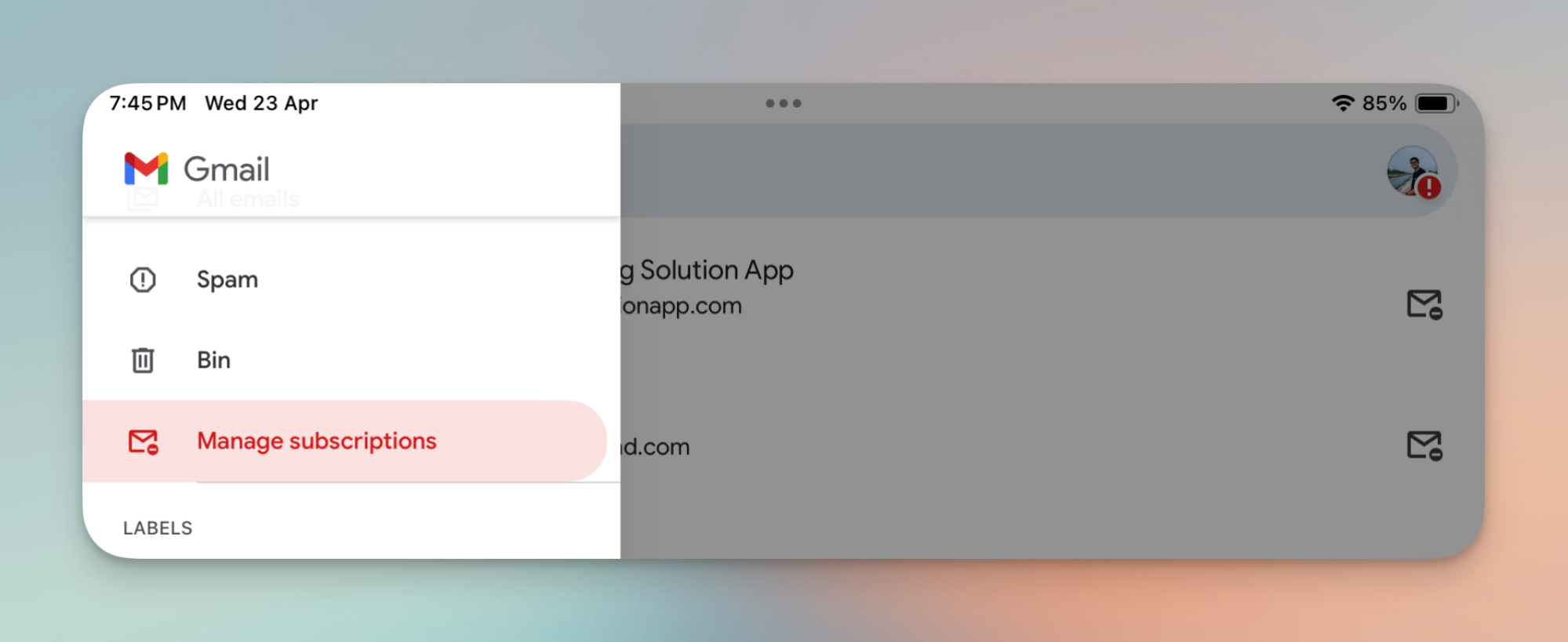
To start managing your subscriptions, first, locate the list of newsletters you are currently receiving. On iPhone or Android devices, tap the three-line Menu in the upper left corner and select Manage Subscriptions. If you are using the Gmail website, click the More option to expand the sidebar and find Manage Subscriptions.
You will now see a comprehensive list of all your newsletter senders along with an estimate of how many emails they have recently sent. By clicking on a sender’s name, Gmail will present you with a history of their recent communications. To unsubscribe, simply select the Unsubscribe button, which is represented by a mail icon with a minus sign on the right.

Gmail will then prompt you for confirmation. Just tap Unsubscribe, and the process is complete.

Gmail will inform you that you are now unsubscribed from that particular newsletter; however, it may take a few days for emails to stop arriving in your inbox. For most newsletters with a clear Unsubscribe option, this process will work seamlessly. Yet, there may be instances where Gmail cannot automatically unsubscribe you.
In such cases, the option will change to Go to website, allowing Gmail to open the necessary webpage for confirmation. This added step is minimal and remains a straightforward task.