By using this site, you agree to the Privacy Policy and Terms of Use.
Accept
Daily HacklyDaily HacklyDaily Hackly
  • Tech & Digital Trends
  • Entertainment & Lifestyle
  • Money & Smart Living
  • Productivity & Life Hacks
Search
  • Contact
  • Blog
  • Complaint
  • Advertise
© 2022 Foxiz News Network. Ruby Design Company. All Rights Reserved.
Reading: Simultaneously Pairing Dual Bluetooth Headphones with Your Mac Device
Share
Sign In
Notification Show More
Font ResizerAa
Daily HacklyDaily Hackly
Font ResizerAa
Search
  • Home
    • Home 4
  • Categories
  • Bookmarks
  • More Foxiz
    • Sitemap
Have an existing account? Sign In
Follow US
  • Contact
  • Blog
  • Complaint
  • Advertise
© 2022 Foxiz News Network. Ruby Design Company. All Rights Reserved.
Daily Hackly > Blog > Tech & Digital Trends > Simultaneously Pairing Dual Bluetooth Headphones with Your Mac Device
Tech & Digital Trends

Simultaneously Pairing Dual Bluetooth Headphones with Your Mac Device

DailyHackly
Last updated: February 4, 2025 9:35 am
DailyHackly
Share
Simultaneously Pairing Dual Bluetooth Headphones with Your Mac Device
SHARE

How to Share Audio on Your Mac with Two Bluetooth Headphones

Looking to enjoy a movie alongside a friend using your Mac? Whether you’re coping with the challenges of a lengthy flight or dealing with malfunctions from your MacBook Air speakers, there’s good news. Macs come equipped with an integrated feature that allows them to combine several sound outputs, negating the need for any external applications. This enables you to connect two pairs of Bluetooth headphones and enjoy the same audio without experiencing any audio delay or drift.

Step 1: Pair Both Devices via Bluetooth

Begin by linking both Bluetooth headphones to your Mac. This can be accomplished by navigating to the Control Center and selecting Bluetooth.

Connect two Bluetooth devices to the Mac.
Image Credit: Khamosh Pathak

If the devices haven’t been paired yet, they won’t appear in the list. In that case, head to System Settings and then select Bluetooth to pair the headphones with your Mac.

Step 2: Configure Dual Audio Outputs

To initiate the audio configuration, launch the Audio MIDI Setup application. You can locate it in the Applications folder under Utilities or quickly find it through Spotlight Search or Launchpad.

In the Audio MIDI Setup window, click the Plus icon in the lower-left corner and select Create Multi-Output Device.

Create Multi Output Device in Audio MIDI app.
Image Credit: Khamosh Pathak

You will see all connected audio devices. Select the two devices you wish to use for playback. You can designate one as the Primary Device. The app will automatically activate the Drift Correction feature for the secondary headphone, ensuring both devices are perfectly synchronized.

Choosing two headphones from all available outputs
Image Credit: Khamosh Pathak

Next, double-click the Multi-Output Device name in the sidebar to assign it a name that is easy to remember. To test the setup, control-click this group and select Use This Device for Sound Output. This action will immediately direct the audio to the paired headphones.

Rename the group and choose it as an audio output.
Image Credit: Khamosh Pathak

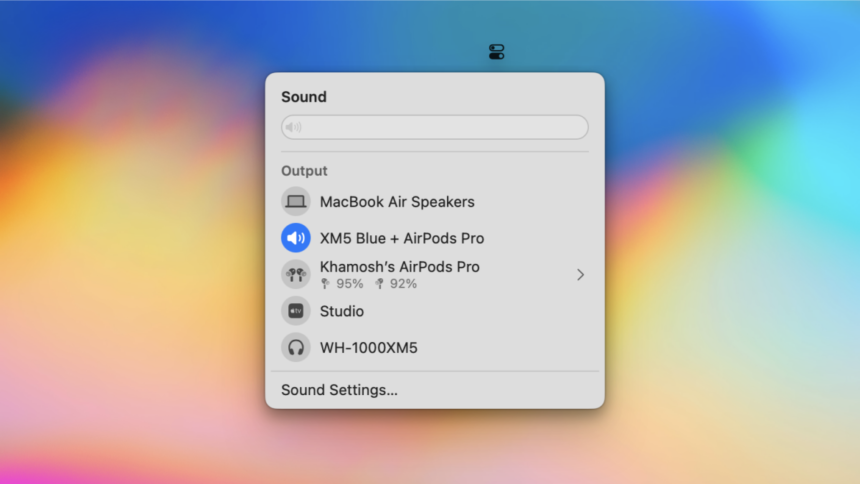
For a quicker way to switch audio to the headphones, consider using the Sound menu within the Control Center.

Click the Control Center icon on the menu bar, then navigate to the Devices tab under Sound (it’s possible to drag the Sound option directly onto the menu bar for easier convenience).

Opening the Sound menu in Control Center for Mac.
Image Credit: Khamosh Pathak

Select the audio pair you just created. If this is your first time, pick the Multi-Output Device and it will automatically be updated with the name you’ve assigned, facilitating easier selection in future sessions.

Choose Multi Output Device from Sound menu in Control Center.
Image Credit: Khamosh Pathak

When you’re ready to use this configuration again, remember to connect both devices separately through the Bluetooth menu first, and then select them as a combined output from the Sound menu (they won’t show as an integrated pair in the Bluetooth menu by default).

Enjoy your shared listening experience with the ease of multiple audio outputs on your Mac!

You Might Also Like

Top Innovations Unveiled at CES 2025

Google Introduces AI-Powered Podcasts to Summarize Your Search Outcomes

Significant Savings: Grab This Amazon Soundbar and Subwoofer Set for Almost $100 Less

Creating Custom Quirky Emojis on Your iPhone

A Guide to Expanding Your Mac’s Built-in Dictionary with Custom Terms

TAGGED:accessoires Macappareils Macastuces Macaudio sans filcasque Bluetoothcompatibilité Macconnexion Bluetoothécouteurs dualécouteurs sans filguide BluetoothMacpaire simultanéepairing Bluetoothtechnologie Bluetoothutilitaires audio

Sign Up For Daily Newsletter

Be keep up! Get the latest breaking news delivered straight to your inbox.
[mc4wp_form]
By signing up, you agree to our Terms of Use and acknowledge the data practices in our Privacy Policy. You may unsubscribe at any time.
Share This Article
Facebook Copy Link Print
Share
Previous Article Today’s Wordle Clue: January 17, 2025 – Discover Your Next Challenge! Today’s Wordle Clue: January 17, 2025 – Discover Your Next Challenge!
Next Article Strategies for Concealing Your Social Media Profiles Strategies for Concealing Your Social Media Profiles
Leave a Comment

Leave a Reply Cancel reply

Your email address will not be published. Required fields are marked *

Stay Connected

248.1kLike
69.1kFollow
134kPin
54.3kFollow
banner banner
Create an Amazing Newspaper
Discover thousands of options, easy to customize layouts, one-click to import demo and much more.
Learn More

Latest News

10 Captivating Series That Echo the Thrills of “Stranger Things”
Entertainment & Lifestyle
Misconceptions Surrounding Julian Brown’s Vanishing: This Week’s Key Insights
Entertainment & Lifestyle
Top Alternatives to “Wednesday”: Must-See Shows for Fans
Entertainment & Lifestyle
Price Hike Announcement for Nintendo Switch: What Gamers Need to Know
Entertainment & Lifestyle
//

We influence 20 million users and is the number one business and technology news network on the planet

Quick Link

  • Contact
  • Blog
  • Complaint
  • Advertise

Support

Sign Up for Our Newsletter

Subscribe to our newsletter to get our newest articles instantly!

[mc4wp_form id=”1616″]

Daily HacklyDaily Hackly
Follow US
© 2022 Foxiz News Network. Ruby Design Company. All Rights Reserved.
Join Us!
Subscribe to our newsletter and never miss our latest news, podcasts etc..
[mc4wp_form]
Zero spam, Unsubscribe at any time.
Welcome Back!

Sign in to your account

Username or Email Address
Password

Lost your password?