Maximizing Your MacBook’s Battery Life: Essential Tips
One of the standout features of the latest MacBooks is their impressive battery longevity. Thanks to the M-series chips, these devices can often sustain themselves for several days without needing a power source. In fact, the battery is so reliable that it often goes unnoticed, except when on the move.
However, high battery performance isn’t permanent. Over time, batteries naturally lose their capacity, a process that is largely unavoidable. Nonetheless, there are strategies available to mitigate this deterioration.
A detailed analysis from Battery University highlights two primary factors that can lead to the decline in battery efficiency: environmental elements, particularly temperature, and battery cycles. The site mentions, “The most detrimental scenario is maintaining a fully charged battery at high temperatures.”

Temperature management is crucial: avoiding leaving the laptop in sweltering conditions, such as a parked car, especially with a full battery, is essential. Keeping the device away from extreme temperature fluctuations when using or storing is highly advisable.
While staying aware of environmental conditions is straightforward, monitoring the charging levels can be more challenging. Fortunately, Apple’s more recent Mac models come equipped with automatic features, and for those who wish for more control, third-party applications are also available.
Making Use of Optimized Battery Charging
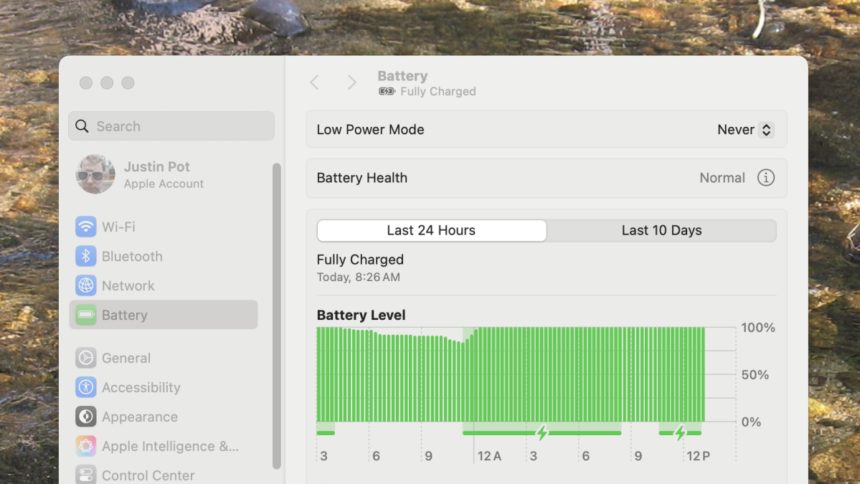
MacBooks operating on macOS Big Sur or later have a built-in feature named Optimized Battery Charging, designed to enhance battery lifespan by default. This function manages charging in a way that allows the battery to charge fully only when it’s expected to be unplugged; otherwise, it hovers around the 80% mark. As per Apple’s documentation, “Your Mac observes your charging habits and endeavors to prepare a full charge just before you remove it from the socket.”
The effectiveness of this feature can differ based on individual usage patterns. For example, it may delay full charging until later in the day if the device is typically plugged in during work hours. Conversely, if it’s charged overnight, it will remain at 80% until closer to the user’s morning routine.
For those occasions when immediate full charging is needed, the battery icon located in the menu bar allows users to select Charge to Full Now. Users can deactivate this feature by navigating to System Settings, selecting Battery in the sidebar, and clicking the information icon next to Battery Health. From that menu, Optimized Battery Charging can be disabled.
How are you finding this information?

Photo Credit: Justin Pot
For the majority of users, it’s advisable to keep this feature enabled. It promotes the longevity of the battery without significantly affecting daily performance.
If Manual Management is Desired
Should there be a preference for more direct control over charging, consider using Battery Toolkit. This complimentary application allows for personalized regulations on charging levels. As detailed in prior discussions, it empowers users to tailor how their MacBook charges.

Photo Credit: Justin Pot
This application fosters a customized battery management experience, allowing users to set specific charging parameters. While this option might appeal to power users who wish to maximize battery lifespan, it does require an active commitment to monitor charging needs. The potential benefit is a battery that could last longer, but the trade-off is the necessity for foresight to reach full charge when desired.